Streamline Your Reservations with the New Booking Block
Managing reservations shouldn't be a headache—for you or your customers. Whether you run a bustling restaurant, a cozy cafe, or an event venue, the new Booking Block in SmartFX CMS makes accepting reservations seamless, stylish, and stress-free.
In this post, we’ll walk you through how the booking system works, how to set it up on your site, and how to manage your incoming reservations.
📅 The Customer Experience: Simple & Intuitive
We designed the Booking Block with your customers in mind. No clunky interfaces or redirected pages—just a clean, modern booking flow directly on your website.
Visual Calendar: Customers see an interactive calendar where they can easily browse months and select a date.
Real-Time Availability: Dates are automatically disabled if you’re fully booked or if they are in the past.
Smart Capacity Tracking: As bookings come in, the system automatically tracks remaining seats or tables for each day.
Instant Confirmation: Once a customer submits their details (Name, Email, Phone, and Party Size), they receive an immediate on-screen confirmation and an automated email receipt.
🛠️ Setting It Up: A Guide for Owners
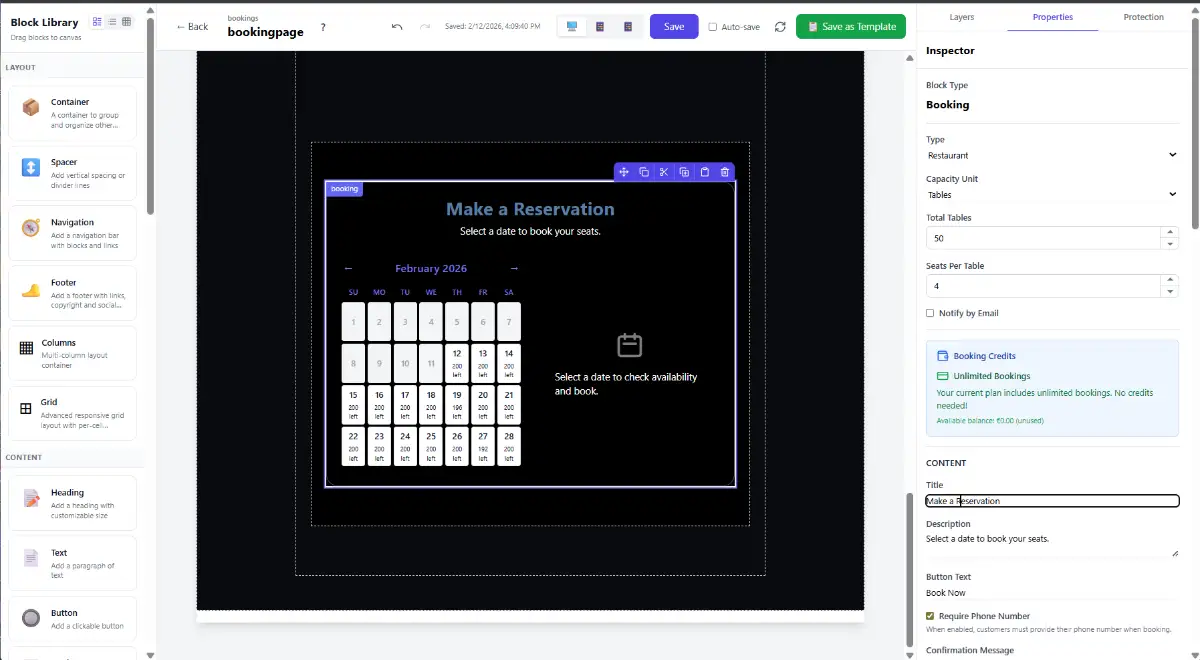
Adding a reservation system to your site takes just a few clicks in the SmartFX CMS editor.
1. Add the Block
Drag and drop the Booking block from the "CONTENT" section of the block library onto your page.
2. Configure Your Venue
Open the block inspector to customize the settings to match your business:
Type: Choose between Restaurant or Venue mode.
Capacity Unit: Define capacity by Seats (total number of people) or Tables (total tables + seats per table).
Notifications: Enable email notifications so you get an alert the moment a new booking comes in.
3. Style It Your Way
Make the booking form blend perfectly with your brand:
Colors: Customize the calendar, buttons, and text to match your site’s theme.
Gradients: Add modern linear or radial gradients for a premium look.
Glass Effect: Enable the "Glassmorphism" effect for a sleek, translucent background that sits beautifully over images.
📊 Managing Bookings in the Dashboard
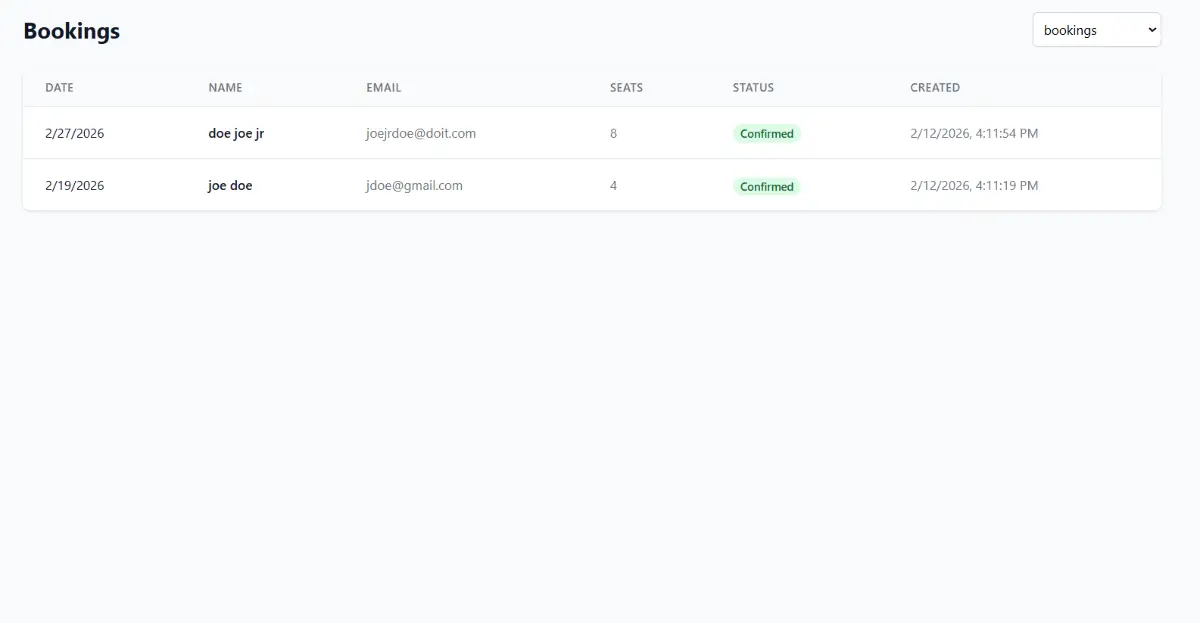
Once your booking form is live, you can manage everything from the CMS dashboard.
Navigate to the Bookings tab in the sidebar.
Select your website from the dropdown menu.
View a comprehensive list of all reservations, including:
Customer Name & Contact Info
Date & Time
Party Size
Booking Status (Confirmed/Cancelled)
This gives you a central hub to track your guest list without needing external spreadsheets or software.
💎 Pricing & Credits: Pay-As-You-Go
We believe in flexible pricing that grows with your business.
For Free Plan Users (Pay-As-You-Go)
If you are on the free plan, you can use the booking system on a Pay-As-You-Go basis.
Cost: €1 for 10 bookings.
Credits: You simply top up your "Booking Credits" balance in the dashboard.
Control: Credits are only deducted when a customer successfully books.
For Subscribers (Unlimited)
Upgrade to a paid subscription plan to unlock Unlimited Bookings.
No per-booking fees.
No need to top up credits.
Accept as many reservations as you want for one flat monthly rate.
🚀 Ready to Get Started?
The Booking Block is available now in the SmartFX CMS editor. Log in, add it to your site, and start accepting reservations today!